Configuring Your Connected Platforms
Overview
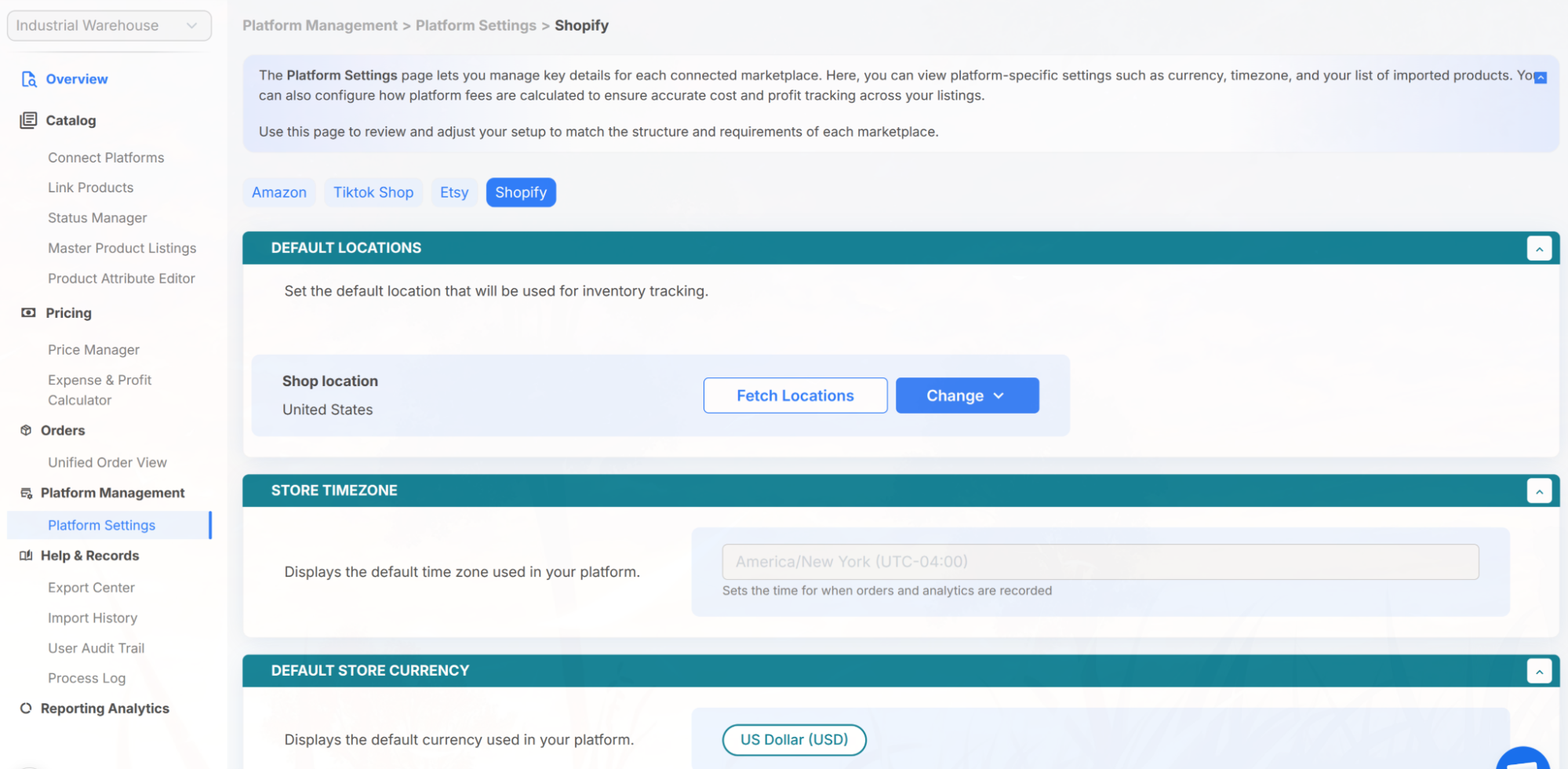
Platform Settings is where you manage the configuration for each platform you've connected to LinkSyncSell. Each platform has its own set of options because each marketplace is different - but they're all organized in one place.
How to Access
Navigate to Platform Management → Platform Settings in the left sidebar.
What You'll Find Here
Settings are organized by platform. Each platform section includes:
Store Details
Platform-specific display settings pulled from your connected store. Depending on the platform, this includes:
- Default Location - the inventory location used for stock tracking (you can fetch locations and change the default; changing it moves inventory tracking for all products to the new location)
- Store Timezone - the time zone used when orders and analytics are recorded (read-only)
- Default Store Currency - the currency used by the platform (read-only)
- Unit System & Default Weight Unit - the measurement and weight units used by the platform (read-only)
Platform Fees
Enter your current fee rates for Shopify and Faire so the Expense & Profit Calculator can use accurate numbers. Amazon fee rates are shown as read-only reference tables, and TikTok Shop fees are calculated automatically. For example:
- Shopify: Shopify Payment Fees and 3rd-Party Payment Provider Fees
- Faire: Commission Fees and Payment Processing Fee
- Amazon: reference fee tables (Referral Fees by category, FBA Fulfillment Fees, and Closing Fees) shown for reference, with links to Amazon's current rates - these are not entered manually
Saving Your Changes
Edits on this page are not saved automatically. When you change a setting, a bar appears at the bottom of the page with two options:
- Save - stores your changes (the button stays inactive until you actually change something)
- Abandon Changes - discards your unsaved edits after a confirmation prompt
