What is a Master Product?
Overview
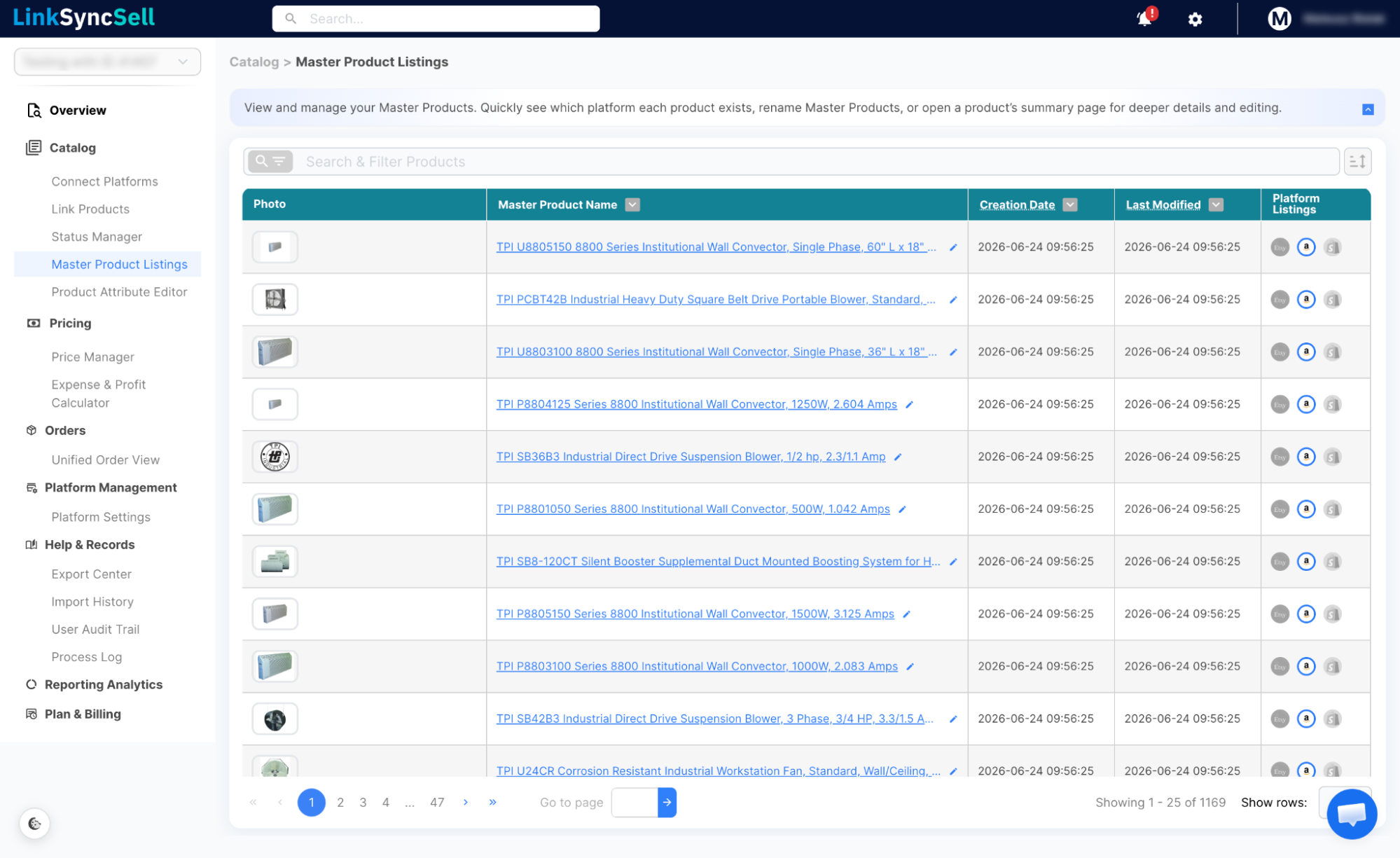
A Master Product is how LinkSyncSell groups the same item together across all your selling platforms. Think of it as the central identity for a product - no matter how it's listed on Shopify, Faire, Amazon, or TikTok Shop, the Master Product is the common thread that ties all those listings together.
Why Master Products Matter
Without Master Products, there's no reliable way to know that the same physical item is selling under different names or slightly different details across your platforms. Master Products solve this by giving you:
- One view for all listings - see every platform's listing for the same product in one place
- Centralized inventory management - update and track stock across all platforms from a single record
- Centralized pricing - compare and manage prices across marketplaces without switching tabs
- Accurate profit calculations - because all variants and platform listings are connected, profit estimates are calculated per product across all channels
- A clean, organized catalog - instead of a flat list of hundreds of individual platform listings, you get a structured catalog organized around actual products
How Master Products Are Created
Master Products are created in two ways:
- Automatically - when you import products from a platform, LinkSyncSell looks for listings that share the same SKU and groups them under one Master Product. This happens in the background without any action needed from you. The more consistent your SKUs are across platforms, the more accurate the auto-linking will be.
- Manually - if a listing has a missing, blank, or inconsistent SKU, LinkSyncSell can't automatically link it. For these cases, you create or assign Master Products yourself through Catalog > Link Products.
Auto-Create Master Products
Instead of creating Master Products one at a time, you can let LinkSyncSell process all eligible listings at once. It matches listings by SKU where it can and creates Master Products for the rest. Run it for all platforms from Catalog > Link Products, or for a single platform from that platform's Selling Platforms page.
Listings That Need Attention
Listings that couldn't be auto-linked - because they have a missing, blank, or inconsistent SKU - aren't assigned to any Master Product. They're collected in a dedicated "Need Attention" view in Catalog > Link Products. This is where you go to manually create or assign Master Products for the listings the system couldn't group on its own.
Key Rules to Know
A few important things about how Master Products work:
- Each platform listing belongs to exactly one Master Product - it can't be split across two.
- You can't assign two listings from the same platform to the same Master Product. Each platform can contribute at most one listing per Master Product.
- Master Products can have one or many Master Variants - these represent the individual sizes, colors, or options of a product (for example: size S, M, L).
- The Master Product Name is what you'll see throughout the app in the Status Manager, Price Manager, and other views. Platform-specific product titles are only visible in the Product Attribute Editor.
Master Variants
Every Master Product contains one or more Master Variants. A Master Variant represents a specific option of a product - for example, a T-shirt in Red / Large is one Master Variant, while Red / Medium is another.
Inventory syncing and pricing management happen at the Master Variant level. When a stock count changes for a variant, that update flows to the matching variant on each connected platform.
Troubleshooting
A product is linked to the wrong Master Product.
Go to Catalog > Link Products > Master Product List, find the listing, and use the Reassign option to move it to the correct Master Product.
A product appears twice in my catalog.
This can happen when two listings for the same item were auto-linked into separate Master Products instead of being grouped together - for example, because their SKUs didn't match. Go to Catalog > Link Products, find one of the listings, and use Reassign to move it onto the other Master Product, so both listings live under a single Master Product. There is no one-click "merge" - you consolidate by reassigning the stray listing onto the correct Master Product.
Listing was grouped incorrectly
You can detach a listing from its Master Product at any time in Catalog > Link Products. When you unlink a product-level listing, a new Master Product is created for it automatically. When you unlink a variant from a Master Variant, a new Master Variant is created automatically. Use this when a listing was grouped incorrectly and you want to pull it out on its own.
