Introduction to the Price Manager
Overview
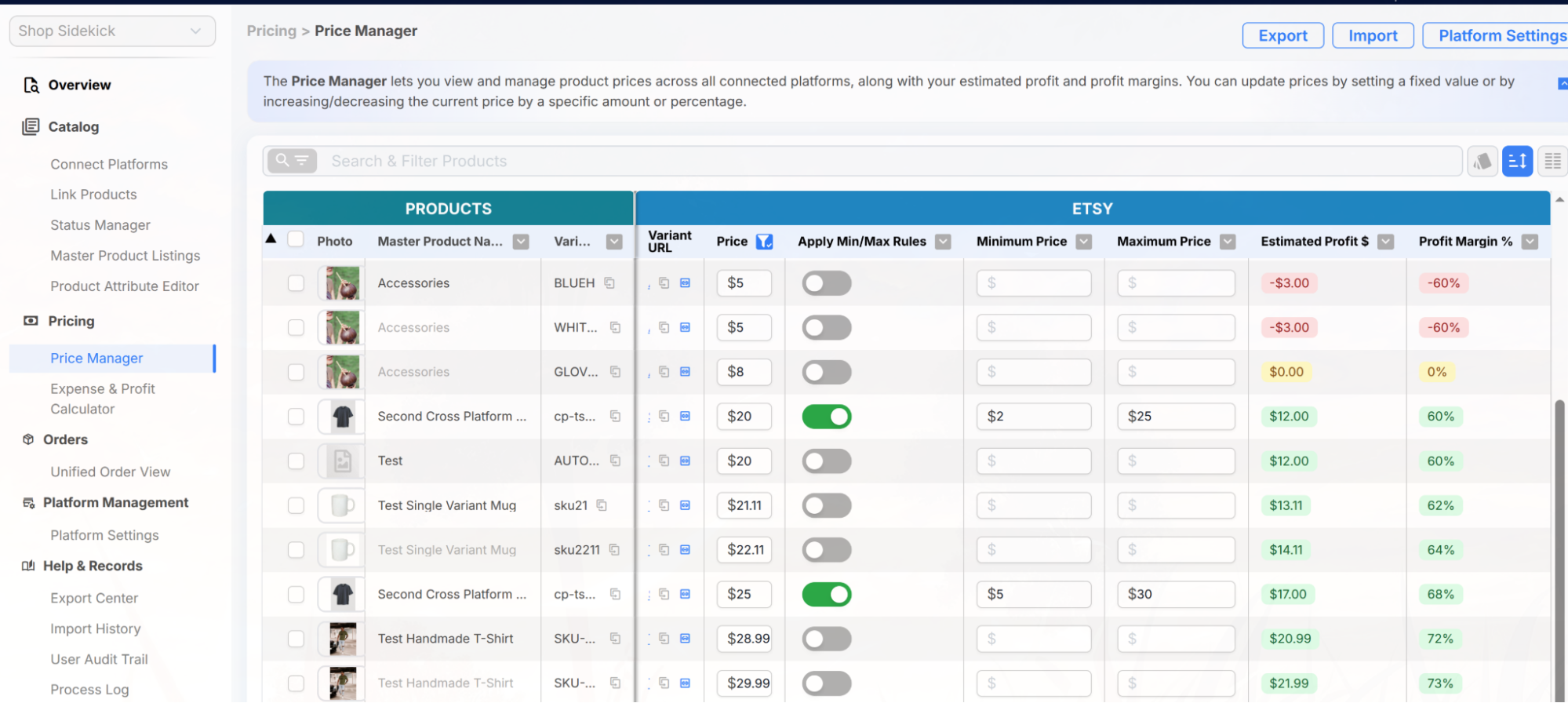
The Price Manager gives you one place to view and update your product prices across all connected platforms. Instead of logging into each marketplace to adjust pricing, you can manage everything from a single table - and set rules to protect against accidental pricing errors.
What You Can Do
- View current prices for every product on every connected platform, side by side
- Edit prices individually (inline) or apply changes to many products at once in bulk - set a fixed price, increase or decrease by an amount or percentage, or set a price from a target profit margin
- Set minimum and maximum price limits for each variant on each platform, and toggle Apply Min/Max Rules on or off, to prevent pricing mistakes
- View estimated profit and profit margin per platform, plus additional price fields such as Wholesale Price, Compare At Price and List Price where the platform supports them
- Export pricing data to a spreadsheet or import bulk price updates from a file
How to Access
In the left sidebar, click Pricing -> Click Price Manager
The Table Layout
The Price Manager uses a multi-level grouped table:
- Products group (left columns): Selector, Photo, Master Product Name, Variant SKU
- Platform groups (right columns): one column group per connected platform. Depending on the platform, columns can include Price, Apply Min/Max Rules, Minimum Price, Maximum Price, Wholesale Price, Compare At Price, List Price, Estimated Profit and Profit Margin
Tips & Notes
💡
Tip: You don't need to switch between tabs to compare prices across platforms - the Price Manager shows all your platform prices in one table, side by side.
📝
Note: All price changes are recorded in the Process Log and Audit Trail so you can always review what was changed and when.
📝
Note: Estimated Profit and Profit Margin are calculated using the platform fees you set in Platform Settings. If these figures look off, open Platform Settings (button next to Import/Export) and review the fees for that platform.
Troubleshooting
The table is empty.
Make sure you have products imported and linked in LinkSyncSell. If products are imported but pricing isn't showing, check that the relevant platforms are still connected.
A platform's pricing columns aren't showing.
Verify that the platform is connected in Connect Platforms. Only connected platforms appear in the Price Manager table.
