Overview & Permission Types
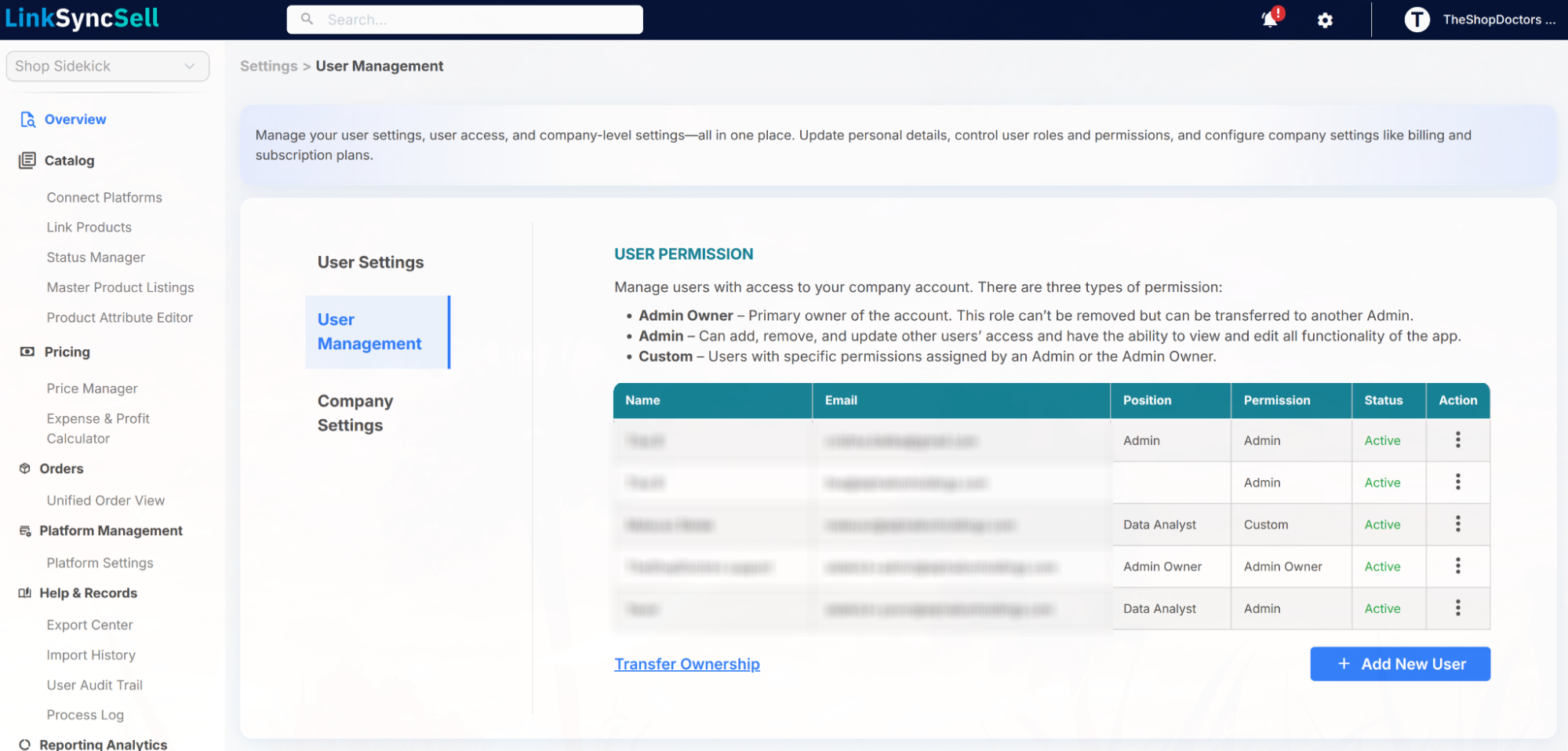
Overview
User Management is where account Admins invite team members, decide what each person can see and do, and remove access when someone leaves. If more than one person works in your business, this is how you give each of them their own login instead of sharing one.
How to Access
Click the Settings (gear) icon in the top-right of the header, click User Settings link in the menu, then open the User Management tab.
Only the Admin Owner and Admin users can manage users. Team members with Custom permissions do not see this tab unless they have been given access to it.
The Three Permission Types
LinkSyncSell uses three permission types to control what each person can do:
- Admin Owner - the primary owner of the account. The Admin Owner has full access to everything, including plans and subscriptions. This role cannot be removed, but it can be transferred to another Admin.
- Admin - can add, remove, and update other users' access, and can view and edit all functionality of the app, except for plans, subscriptions, billing, and transferring ownership (those stay with the Admin Owner). Use this for trusted team leads who help run the account.
- Custom - a user with only the specific permissions an Admin or the Admin Owner assigns. You choose exactly which pages they can open and which actions they can take within each page.
Staff Limits by Plan
The number of users (staff accounts) you can add is set by your plan. When you reach the limit, the Add New User button is disabled and a notice appears (for example, "You've reached your plan's 7-user limit. Upgrade to add more staff accounts."). To add more people, upgrade your plan user slots from Plan & Billing.
