Notifications
Overview
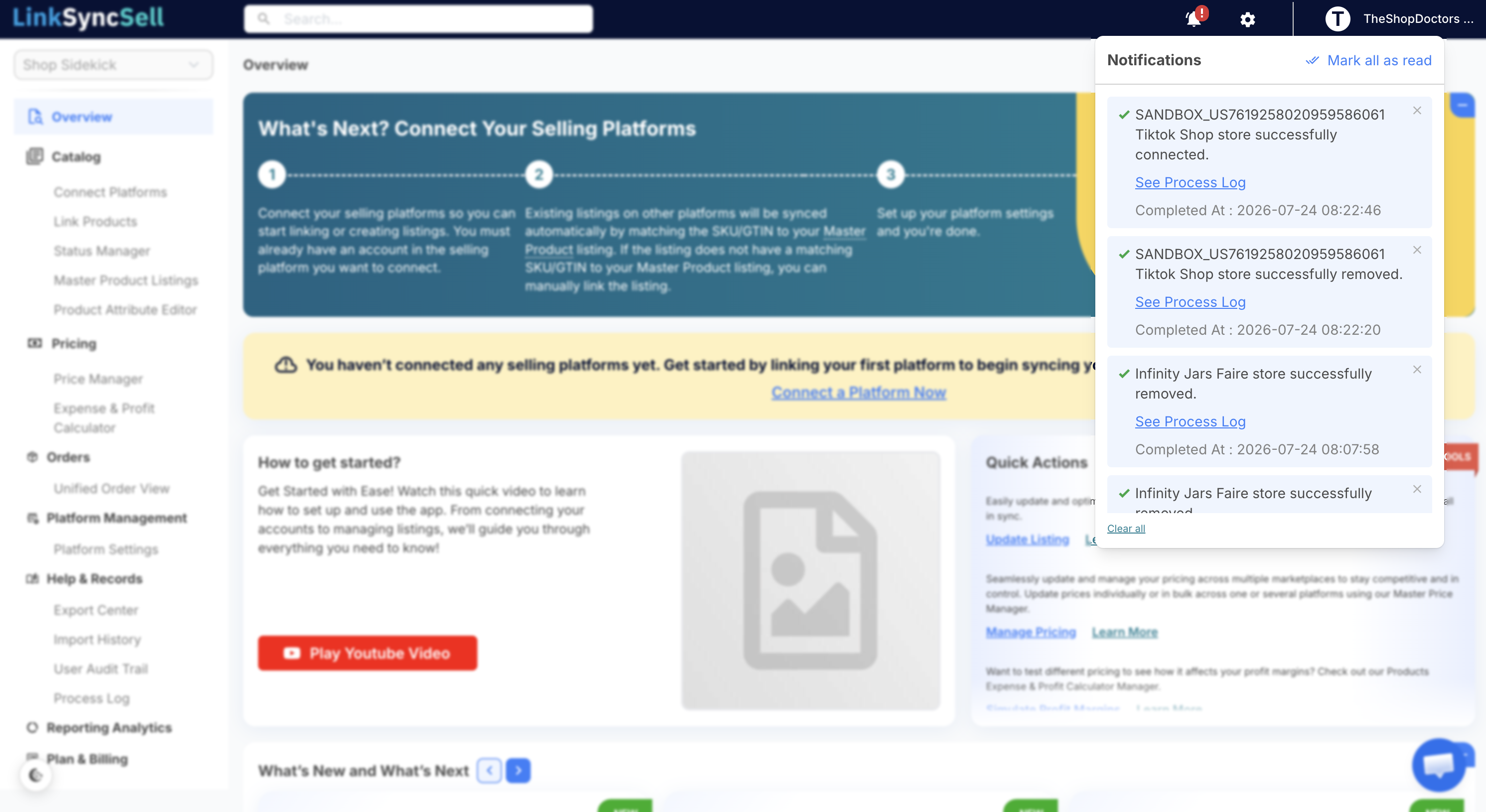
The Notifications bell keeps you informed about things happening in your account without making you hunt through every page. It lives in the header bar, near the top-right of the screen, and is available from anywhere in LinkSyncSell.
When you have unread notifications, a small red badge appears on the bell showing how many are waiting for you.
Opening Your Notifications
- Click the bell icon in the header bar.
- A Notifications panel opens, listing your most recent notifications, newest first.
- Click any notification to jump straight to the relevant page (for example, a plan alert links you to Plan & Billing).
What Notifications Cover
Notifications surface the kinds of updates you'll want to act on, such as:
- Account and plan alerts: for example, a message letting you know you've reached or exceeded your plan's product allowance, with a link to review your plan.
- Listings that need your attention: a reminder that some imported listings couldn't be auto-linked and are waiting in Link Products > Listings That Need Attention.
- Sync and import updates: notices tied to platform syncs, imports, or other background processes.
📝
Note: Notifications point you to where the action lives. To dig into the underlying detail of a sync or import, open Help & Records > Process Log or Import History.
Marking Notifications as Read
- Click the Mark all as read button at the top of the panel to clear the unread badge in one step.
- Opening a notification also marks it as read.
Notifications vs. the Alert Banner vs. Email
LinkSyncSell can reach you in three different ways. It helps to know the difference:
- Notifications panel (the bell): a running list of recent in-app messages you can revisit at any time.
- Alert banner: the colored bar that appears across the top of the page for urgent, account-level issues (such as exceeding your product allowance). It stays visible until you dismiss it or resolve the issue. See Understanding Your Plan for more on the product-allowance alert.
- Email: some events, like a failed payment, also send an email to your billing contact. See Managing Payment Details.
Tips & Notes
💡
Tip: Get in the habit of glancing at the bell after a large import or a new platform connection. That's when you're most likely to have listings that need attention.
📝
Note: Clearing a notification does not undo whatever it was about. For example, marking a "product allowance exceeded" notification as read does not change your usage, you still need to resolve it from Plan & Billing.
