Editing, Removing & Transferring Ownership
Overview
As your team changes, you will need to adjust who can do what, remove access for people who leave, and occasionally hand the account over to a new owner. Admins and the Admin Owner manage editing and removing users from the User Management tab. Transferring ownership can only be done by the Admin Owner.
Editing a User's Access
- Open Settings > User Management.
- Find the user you want to change.
- Update their permissions: change them between Admin and Custom, or adjust which pages and actions they can access.
- Save the change. The user's access updates right away the next time they load the app.
Removing a User
- Open Settings > User Settings > User Management.
- Find the user you want to remove.
- Remove their access by clicking "Remove User" in the action menu.
Removed users lose access immediately and no longer count toward your plan's staff limit. Removing a user does not delete the history of what they did. Their past actions remain in the User Audit Trail.
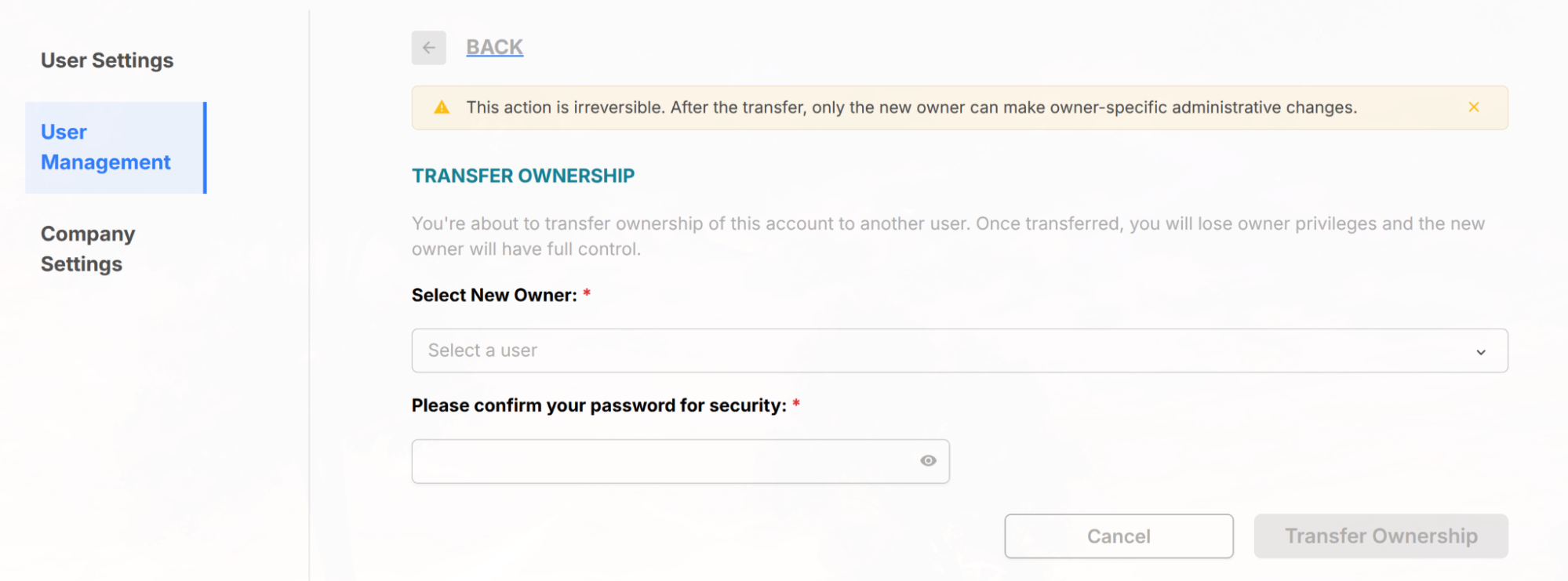
Transferring Ownership
There is exactly one Admin Owner per account. To move that role to someone else:
- Make sure the person you are transferring to is already an Admin on the account.
- Open Settings > User Settings > User Management.
- Click Transfer Ownership and choose the Admin who should become the new Admin Owner.
- Confirm the transfer.
After the transfer, the new person has full owner access (including plans and subscriptions), and the previous owner becomes a regular Admin.
Tips & Notes
Troubleshooting
I can't remove the Admin Owner.
That is expected. The Admin Owner role cannot be removed. Transfer ownership to another Admin first, then remove the previous owner's account if needed.
A removed user can still see data.
Ask them to refresh or sign out and back in. Access is revoked immediately, but an already-open session may need to reload.
