Shopify - Editing a Product Listing
Overview
Edit your Shopify product listings directly from LinkSyncSell. When you save and post, your changes are pushed to your Shopify store automatically - no need to log into Shopify separately.
Prerequisites
- Shopify store connected in Connect Platforms
- An active subscription (product editing and posting require an active plan)
Steps
- Go to Catalog > Product Attribute Editor
- Select the Shopify tab
- Find the product you want to edit - use the search bar or filters to narrow things down
- Click the product to open its editor
- Make your changes in the relevant sections (see below)
- Choose how to save your changes (see Saving Your Changes below)
Editing Sections
The Shopify listing editor is organized into expandable sections:
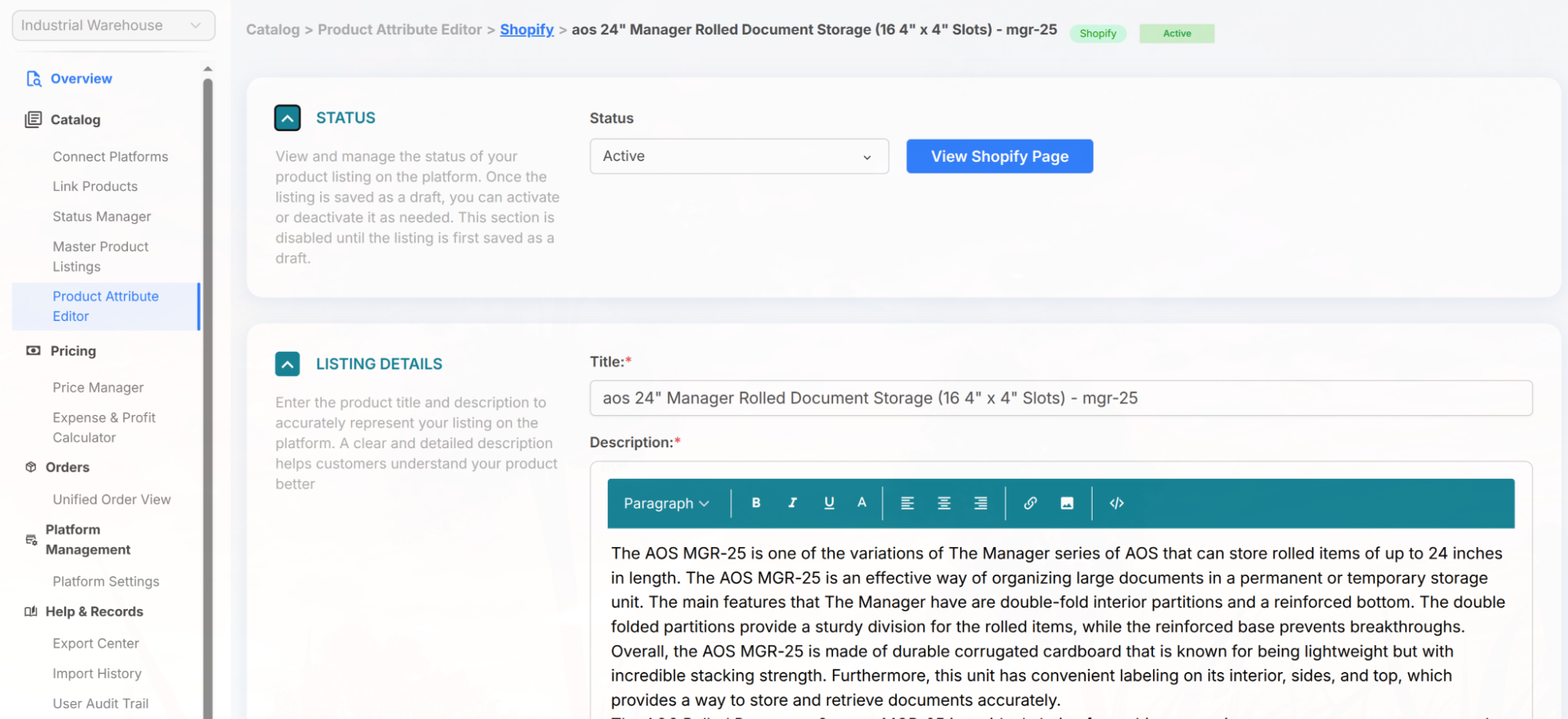
- Status - set the listing to Active, Draft, or Archived. This section also has a View Shopify Page button that opens the live listing on Shopify in a new tab (available once the listing is Active and has no unsaved changes).
- Listing Details - title and description
- Category - Shopify product category
- Product Media - photos and videos for the listing
- Variants, Pricing, Shipping & Inventory - variant options, SKUs, prices, Compare At Price, weight, inventory levels, and min/max price rules
- Additional Information - product type, vendor, collections, and tags
- SEO Listing - SEO page title, meta description, and URL handle
Saving Your Changes
The save options you see depend on the listing's current state, so not all of them appear at once:
- Save Local Draft (App) - saves your changes in LinkSyncSell only; nothing is sent to Shopify. This appears for listings that aren't published to Shopify yet (new or local listings). Use it to prepare changes before publishing.
- Save Draft (Shopify) - saves the listing on Shopify with its status set to Draft. Available while the listing is still a draft (or not yet published) and you're not switching it to Active or Inactive.
- Save & Post to Shopify - saves and immediately pushes all your changes to your live Shopify store. When you edit an already-published listing, this is usually the only save option you'll see.
💡
Tip: Use "Save Local Draft (App)" when you want to stage edits before pushing anything live. You can come back and post them when you're ready. (This option is available for listings that aren't published to the platform yet.)
📝
Note: After saving, a completion banner will appear to confirm whether the update was successful, failed, or partially completed. If anything failed, check the Process Log for details.
Other Actions
- Duplicate Listing - creates a copy of this product listing. Useful when creating similar products.
- Abandon Changes - discards all unsaved edits and reverts the listing to its last saved state.
- Delete Product Listing - removes the listing from LinkSyncSell only. Available for listings that exist just in the app and aren't published to the platform.
Tips & Notes
📝
Note: All changes are recorded in the Process Log and Audit Trail. If a change goes through and you need to trace it later, that's where to look.
Troubleshooting
Update failed.
Check that your Shopify store is still connected. Go to Connect Platforms and verify the connection is active.
Changes saved in LSS but not showing in Shopify.
Check the Process Log for errors. This can happen if the platform connection experienced a temporary issue. Try saving and posting again once the connection is confirmed.
