Overview of the Status Manager
Overview
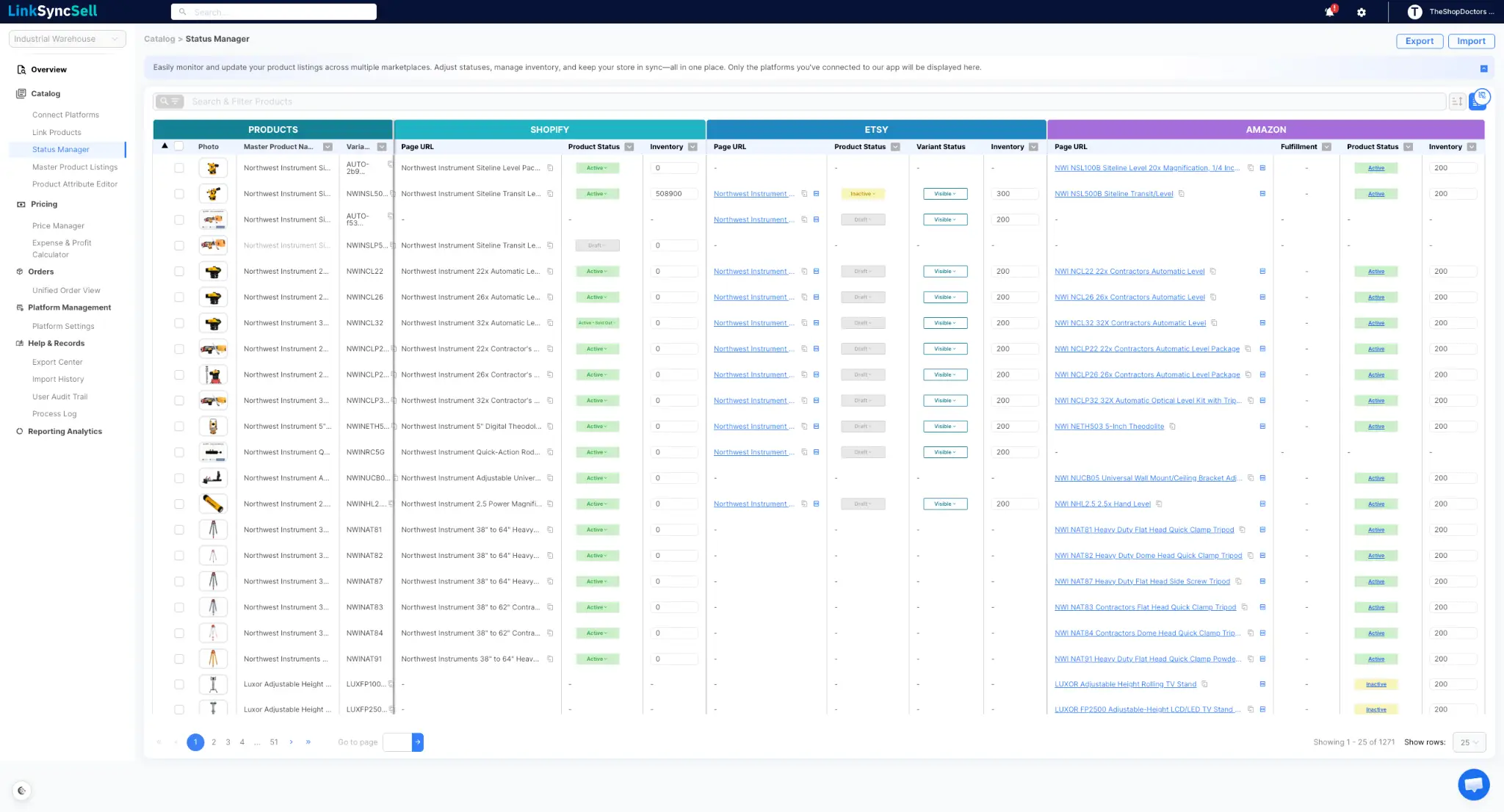
The Status Manager is your command center for monitoring and controlling the status and inventory of your listings across every connected platform - all from one place. Instead of logging into each marketplace separately to check if your products are live, you get a clear, unified view of everything happening across your catalog.
What You'll See
The Status Manager uses a two-level grouped table. The left side shows your product information, and the right side groups columns by platform.
Products group (left columns):
- Selector - a checkbox for selecting listings for bulk actions
- Photo - a thumbnail image of the product
- Master Product Name - the unified product name as it appears in LinkSyncSell
- Variant SKU - the SKU for this specific product variant
Platform groups (right columns):
There's one group of columns for each platform you've connected. Each platform group shows:
- Page URL - a direct link to the listing on that marketplace
- Product Status - the computed status for that listing (more on this below)
- Inventory - the current stock count for this variant on that platform
- Actions - buttons to edit or publish the listing
Platform-specific columns:
Some platforms have additional columns beyond the standard set:
- Shopify only: Sell When Out of Stock - a toggle that controls whether Shopify keeps accepting orders after inventory hits zero
- Faire only: Variant Status - shows whether a specific variant is Visible or Hidden on that platform
- Amazon only: Fulfillment - shows how each variant is fulfilled. Displays either Amazon (Fulfilled by Amazon / FBA - Amazon stores the inventory in its own warehouses and handles shipping) or Merchant (Fulfilled by Merchant / FBM - the seller stores and ships the product themselves). This affects fee calculations.
Understanding Computed Statuses
Every marketplace uses slightly different language for their listing statuses. LinkSyncSell translates all of them into a consistent set of statuses so you can understand what's happening at a glance - regardless of which platform you're looking at.
Here are the key statuses you'll see:
- Active - the listing is live and available to buy
- Active-Sold Out - the listing is live, but inventory has reached zero
- Inactive - the listing has been deactivated or archived
- Draft - the listing exists but hasn't been published yet
- Local Draft - the product exists in LinkSyncSell but has not been pushed to the platform yet
- Pending - the listing is awaiting platform review (TikTok Shop)
- Reviewing - the listing is waiting for platform review (TikTok Shop only)
- Suspended-Failed / Suspended-Frozen - the listing has been suspended by the platform (TikTok Shop only)
- Deleted - the listing has been deleted (TikTok Shop and Faire)
- N/A - no status is available, typically for parent products on Amazon where variants may differ
Some statuses are platform-specific and are shown exactly as they come from the platform.
When to Use the Status Manager
The Status Manager is the right place when you want to:
- Check that all your listings went live after publishing changes
- Bulk activate or deactivate listings across one or more platforms
- Update inventory counts in one place
- Spot listings that are in Draft, Sold Out, or error states
- Monitor the overall health of your catalog across all marketplaces
Troubleshooting
A platform column isn't showing.
The platform may not be connected yet. Go to Catalog > Connect Platforms to link it. If the platform is connected, try clicking the column management button to make sure that platform's columns are set to visible.
Statuses look wrong or out of date.
Try clicking the Fetch Platform Inventory/Status button to pull the latest data from your platforms. If the issue persists, check the Process Log for any sync errors.
