Overview of the Product Attribute Editor
Overview
The Product Attribute Editor (PAE) is where you create and edit product listings for each of your connected platforms. Think of it as your all-in-one listing editor - no need to log into each marketplace separately. Make your changes here and push them live, all from one place.
What You Can Do Here
- Edit product titles, descriptions, images, categories, and other platform-specific fields
- Manage product status and inventory settings
- Create brand-new product listings
- Pull the latest product data from a platform
- Apply changes individually or in bulk
How to Access
In the left sidebar, click Catalog -> Product Attribute Editor
Select the platform tab you want to work with - for example Shopify, Amazon, TikTok Shop, or Faire. A tab appears for every platform you've connected in LinkSyncSell.
The Landing Page
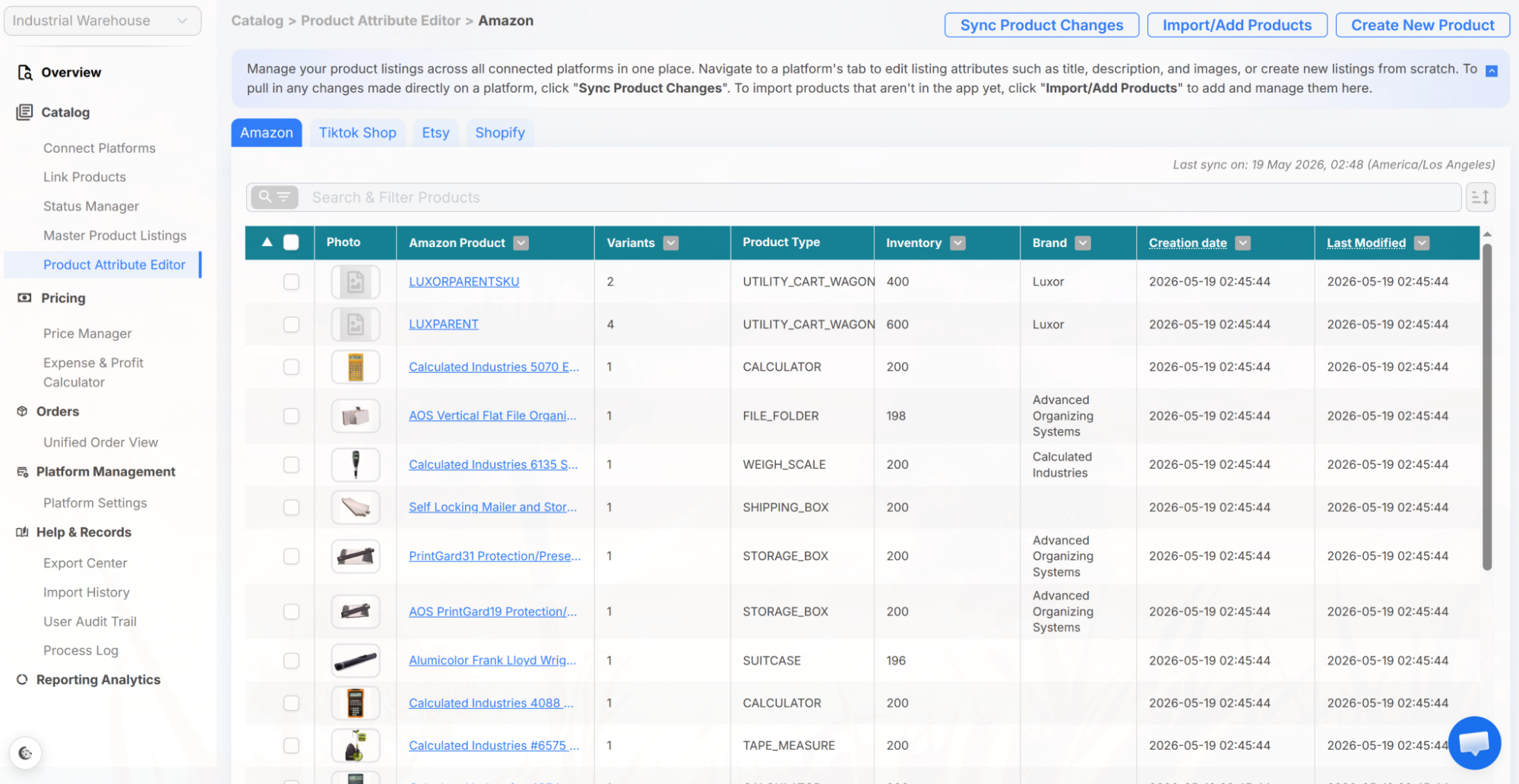
Each platform tab shows a table of all your products on that platform. The columns include:
- Selector - checkbox for bulk actions
- Issues - a warning icon flagging listings with potential listing or pricing issues, or listings that are missing from the platform
- Photo - product thumbnail
- Product - product name
- Status - current listing status
- Variants - number of variants on the listing
- Category - product category (or equivalent for that platform)
- Inventory - stock levels
- Vendor - Shopify-specific vendor field
- Product Type / Brand - Amazon-specific columns: on the Amazon tab, Product Type replaces Category and a Brand column is added
- Creation Date - when the listing was created
- Last Modified Date - when the listing was last updated
Along the top of each platform tab you'll also find quick actions: Sync Product Changes (pull the latest product data from that platform), Import/Add Products (bring in products that aren't in the app yet), and Create New Product (build a brand-new listing). A "Last sync on" timestamp shows when the platform was most recently synced.
Platform Tabs
Switch between platforms using the tabs at the top of the page. Each platform has its own table with platform-specific columns and filters. You can only see tabs for platforms you have connected in LinkSyncSell.
Tips & Notes
Troubleshooting
A platform tab is missing.
The tab only appears if that platform is connected. Go to Connect Platforms and verify the platform is linked to your account.
Products aren't showing up in the table.
Make sure you've imported your products from that platform. If products are connected but still missing, try refreshing the page. If the issue continues, check the Process Log for import errors.
